
Published on
Build a Custom GPT Pilot in Two Weeks Without Code for Small Teams
Yes, you can build a Custom GPT without coding: open ChatGPT, go to Explore GPTs, select Create, and follow a short checklist before you type your first instruction. That checklist matters more than the interface. Use ChatGPT’s native builder when the assistant lives inside ChatGPT for you or your team; choose an enterprise platform when you need website embedding, broader document ingestion, or analytics.
TL;DR:
Building a custom GPT is most effective when focused on a single, repeatable task, such as content polishing, summarization, onboarding, or weekly reporting.
You need a ChatGPT Plus, Business, or Enterprise plan, along with 10 to 15 relevant examples and sanitized knowledge files, before starting the setup process.
Test your GPT thoroughly with a set of 10 to 15 questions, carefully comparing answers to expected results to identify factual inaccuracies or tone issues.
Limit deployment to internal teams or select audiences initially, and set regular reviews, human sign-offs, and monitoring routines to ensure trustworthiness over time.
Narrow scope and well-structured examples remain the most cost-effective approach, with expert support available for larger, complex, or sensitive projects.
BRDGITTurn Your AI Pilot Into ProgressBRDGIT.ai helps teams assess opportunities, build practical roadmaps, and create AI systems that support real daily work.Explore AI execution support
Table of Contents
Checklist: what to prepare before you open the GPT builder
What a Custom GPT is and when it earns its keep
Account rules, plan limits, and file caps you need to know
Build walkthrough: from blank builder to working GPT
Testing plan: write eval questions, measure results, refine
Sharing options and when to look beyond ChatGPT
Practical guardrails: human review, data, and monitoring
A fast-start playbook for small teams
Troubleshooting common issues during custom GPT development
Lessons from building Custom GPTs
Get help building, deploying, or governing your Custom GPT
Sources
FAQ
Checklist: what to prepare before you open the GPT builder
The builder itself takes minutes. The preparation determines whether what comes out of it is useful or a liability. Before you touch the Create tab, confirm the following.
Account access: you need a ChatGPT Plus, Business, or Enterprise plan, and in a workspace, the right role to create or publish, per OpenAI’s GPT Builder documentation.
A defined use case: one repeatable task, not a general-purpose assistant.
Between 10 and 15 real examples: actual inputs and the outputs you’d want, gathered from your own work. A stronger intake process for collecting example prompts makes this step faster and the results more consistent.
A sanitized file set: anything you plan to upload as knowledge, scrubbed of client names, account numbers, or anything you wouldn’t post publicly.
A deployment decision: will this live inside ChatGPT for your team, or does it need to sit on a website or an internal portal.
A named reviewer: someone accountable for checking outputs before the GPT goes beyond a small pilot group.
Pro Tip: Write your five best example answers before you open the builder. That document becomes both your knowledge file and your instruction template.
What a Custom GPT is and when it earns its keep
A Custom GPT is a version of ChatGPT you configure with specific instructions, optional reference files, and a defined set of capabilities. It is not a new model. It is the same underlying system, pointed at a narrower job and given the context to do that job consistently.
The tool earns its keep on repeatable work, not one-off questions. If you find yourself typing a similar prompt more than a few times a week, that is the decision rule: repetition is the signal to build.
Common high-value cases include:
Content polishing: enforcing a house style across drafts, emails, or proposals.
Summarization: condensing meeting notes, reports, or long threads into a fixed format.
Onboarding: answering new-hire questions from a company handbook or process document.
Weekly reporting: turning raw metrics or notes into a consistent update format.
MIT Sloan’s guide to Custom GPTs makes a similar point from an institutional angle: the projects that work are the ones scoped to a single, focused task rather than an attempt to automate an entire role in one pass. Start narrow. You can always widen scope once the narrow version proves itself.
Account rules, plan limits, and file caps you need to know
Before you build, know the constraints, because hitting one mid-project is the most common source of frustration. Creating and publishing GPTs requires a Plus, Business, or Enterprise plan, and in a workspace, publishing may be restricted to certain roles, according to OpenAI’s Custom GPT creation guide.
File limits: knowledge uploads are capped at roughly 20 files per GPT, with per-file size limits that vary by file type and capability, per OpenAI’s help documentation.
Supported formats: plain text, PDFs, and common document formats work well; heavily formatted spreadsheets or scanned images may need cleanup first.
Capability gating: web browsing, code interpreter, image generation, and custom actions each have their own toggle, and some depend on your plan or workspace settings.
Usage counts: messages sent to your Custom GPT draw from the same usage allowance as your regular ChatGPT conversations, so check your plan’s quota page if you expect heavy use.
A small representative test set of 10 to 15 questions is a reliable, lightweight way to catch failure modes before a wider rollout, according to OpenAI Academy’s Custom GPTs guidance. That number becomes useful again in the testing section below, but it starts here, because it should shape how many example files and edge cases you gather during prep.
Build walkthrough: from blank builder to working GPT
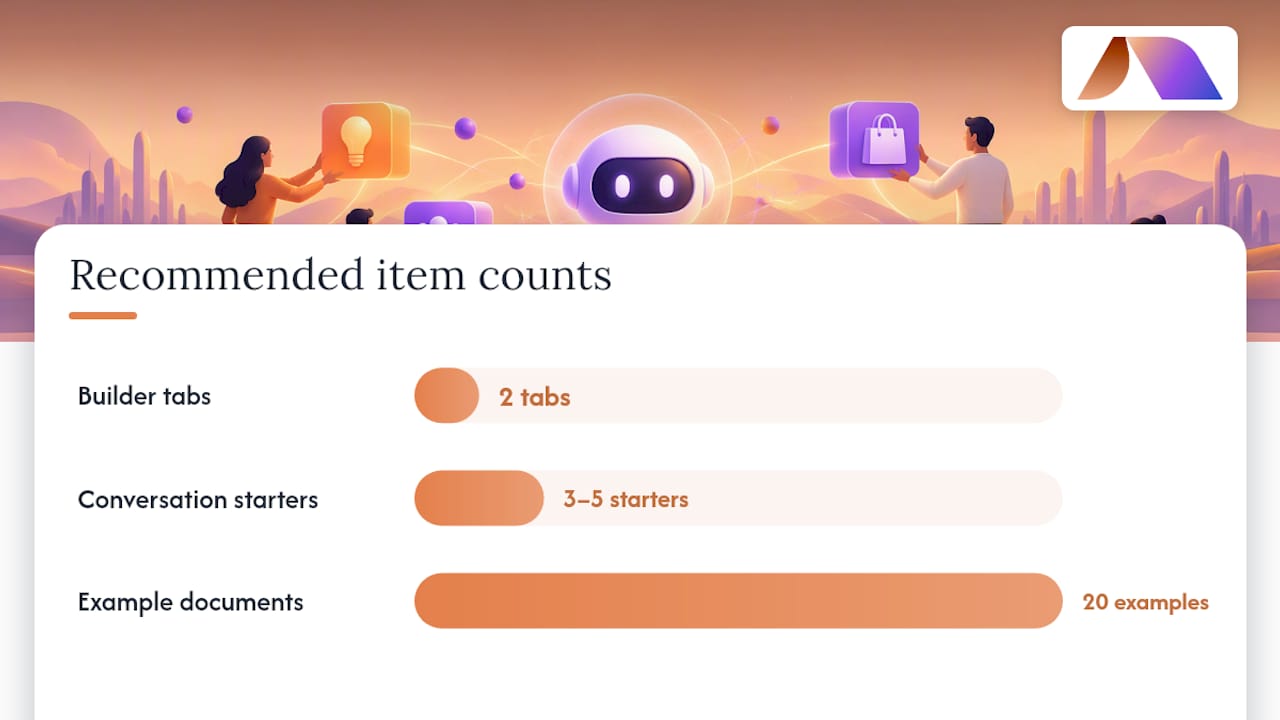
OpenAI’s builder has two tabs that do the same job differently. The Create tab is conversational: you describe what you want, and ChatGPT drafts instructions, a name, and starter prompts for you to refine. The Configure tab is manual: you fill in each field yourself, which gives you more precision if you already know what you want to say.
Most people do best starting in Create to get a rough draft, then switching to Configure to tighten the language. Follow this sequence:
Open GPTs, select Create, and describe your use case in plain language: what the GPT does, who uses it, and what it should never do.
Review the drafted name and description, then rewrite them for clarity. A vague name like “Helper Bot” tells users nothing; “Weekly Sales Recap Writer” tells them exactly what to expect.
Add three to five conversation starters that match real questions your users will ask, since this reduces the blank-page problem for anyone opening the GPT for the first time.
Switch to Configure and refine the instructions field. Structure it in plain rules: what tone to use, what format to output in, what topics to avoid, and what to do when it doesn’t know an answer.
Upload your knowledge files. Keep instructions and knowledge separate: instructions are the rules, knowledge is reference material the GPT can pull from, not a place to bury behavior rules it might miss.
Use the twenty-example method. Compile a document of your best past work, emails, reports, or briefs, and either paste it directly into instructions as a style reference or upload it as knowledge with an instruction pointing the GPT to it. This single step does more to make outputs sound like you than any amount of prompt tweaking.
Enable only the capabilities you need. Turn on web search if answers require current information, code interpreter if the task involves calculation, and custom actions only if you have a specific API to connect, since each added capability is another thing to test and secure.
Run the preview panel with five to ten realistic prompts, including a couple of edge cases you expect users to try, before you consider the build stable.
Iterate on instructions first, knowledge second. If the tone is off or it ignores a rule, that is almost always an instructions problem. If it gives a wrong fact, that is a knowledge problem.
Pro Tip: Write your instructions the way you’d brief a new hire on their first day: specific rules, specific tone, specific exceptions. Vague instructions produce vague behavior.
For a broader look at writing instructions that shape tone convincingly, a guide on writing behavioral instructions for AI covers phrasing patterns that reduce the generic, over-polished feel many first drafts have. And when you’re deciding how much personality versus restraint to build in, examples of personalizing AI behavior for specific audiences are worth a look before you finalize your instruction set.
Testing plan: write eval questions, measure results, refine
A GPT that looks good in a quick demo can fail the first time a real user asks something slightly off-script. The fix is a short, structured test pass before anyone else touches it.
Draft 10 to 15 representative questions covering the core use case, a few edge cases, and at least one question it should refuse or defer on.
Write the expected answer for each, in the format you want, before you run the test. This keeps you from grading generously after the fact.
Run each question through the GPT and score it pass or fail against four criteria: factual accuracy, format compliance, appropriate refusal when it should say it doesn’t know, and absence of invented details.
Revise instructions when the failure is about tone, format, or behavior; revise knowledge when the failure is a wrong fact. Mixing these up is the most common reason people spend hours tweaking instructions that were never the problem.
Save your eval set and results with a date and version number, so the next round of testing has a baseline to compare against.
A representative eval set of 10 to 15 questions is described as a reliable way to catch common failure modes before wider rollout, per OpenAI Academy, and it doubles as your documentation trail if anyone asks how the GPT was checked. For a deeper look at spotting invented facts specifically, a guide to catching AI hallucinations walks through practical detection habits worth building into this stage.
Sharing options and when to look beyond ChatGPT
Once your GPT passes its tests, the next decision is who sees it and where. ChatGPT gives you three visibility levels, and each fits a different stage of rollout.
Private: visible only to you, best for early testing and personal workflows.
Team or workspace link: shared with named colleagues or your whole workspace, suited to internal tools like onboarding assistants or reporting helpers.
Public in the GPT store: visible to anyone, appropriate once the GPT is stable and the content is safe for a general audience.
ChatGPT’s native GPTs are not built for embedding on a website or connecting to broad analytics dashboards. When that is the goal, an enterprise platform or custom API becomes the better fit: CustomGPT.ai’s guide to building from business data frames this clearly, positioning platforms built for embedding, wider document ingestion, and enterprise-grade access controls as the natural next step once a ChatGPT-native GPT outgrows internal use. If you are weighing that jump, a look at platform trade-offs and alternatives can help frame the decision before you commit.
Whichever route you choose, set a review date. GPTs drift as source documents age, and a quarterly check against your original eval set catches that drift before users notice it themselves.
Practical guardrails: human review, data, and monitoring
A working GPT is not the same as a trustworthy one. The gap between the two is closed by a short list of habits, not by better prompting.
Set a human sign-off threshold: anything that informs a client-facing decision, a financial figure, or a legal statement gets a person’s eyes before it goes out.
Strip sensitive data before upload: client names, account details, and anything confidential should never sit inside a knowledge file, sanitized versions only.
Write an explicit “I don’t know” rule into instructions: tell the GPT what to say when it lacks the answer, rather than letting it guess convincingly.
Run a lightweight monitoring routine: spot-check a handful of real conversations weekly, collect user feedback in one place, and re-run your eval set monthly.
NYU Steinhardt’s guidance on GPT use cases makes the underlying point directly: the tool can save real time, but verifying that outputs are credible and correct stays a human responsibility, not something the GPT resolves on its own.
Pro Tip: Keep a running log of every time a user corrects the GPT. Patterns in that log tell you exactly what to fix next, faster than guessing.
A fast-start playbook for small teams
Most teams do not need a six-week AI project to get value from a Custom GPT. A tighter path works better for a first attempt.
Week one: run a short readiness check, confirm your use case, and prototype a first version.
Week two: test against your eval set, revise instructions and knowledge, then roll out to a small pilot group.
Ongoing: gather feedback through one channel, re-test monthly, and expand access once the pilot group stops finding new problems.
Use in-house effort when the use case is narrow and someone already owns the content. Bring in engineering support when the build touches sensitive data, needs custom actions or API connections, or when no one on the team has the bandwidth to own testing and maintenance long-term. A short internal training session paired with a clear feedback channel does more for adoption than any amount of polish on the instructions themselves.
Troubleshooting common issues during custom GPT development
Most Custom GPT problems trace back to one of a handful of causes, and recognizing which one you’re looking at saves hours of unnecessary rewriting.
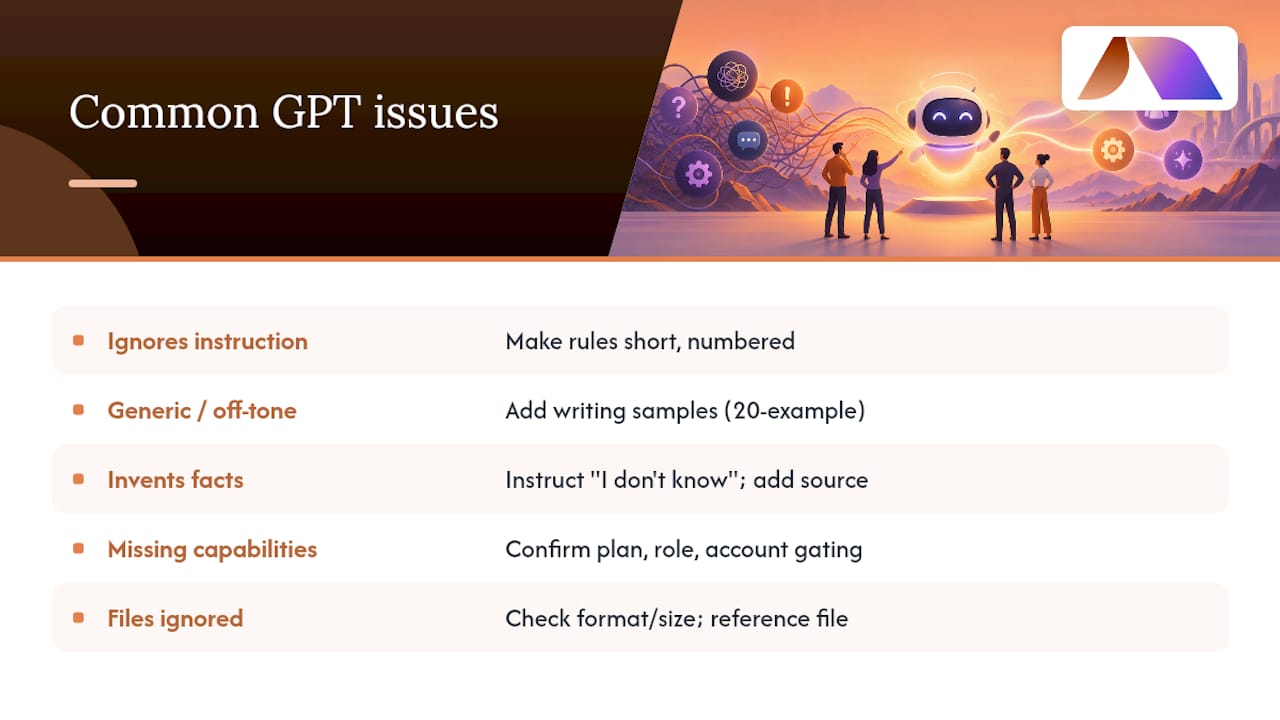
The GPT ignores an instruction. This usually means the rule is buried in a long paragraph rather than stated as a clear, standalone line. Break instructions into short, numbered rules instead of dense prose.
Answers sound generic or off-tone. This is almost always a knowledge gap, not an instructions gap. Add more of your own writing samples using the twenty-example method described earlier, rather than adding more tone adjectives to the instructions.
The GPT invents facts. Check whether the knowledge file actually contains the answer. If it doesn’t, the fix is an explicit instruction to say “I don’t know” rather than guess, plus adding the missing document.
Capabilities don’t appear. Confirm your plan and workspace role support that feature, since some actions and browsing options are gated by account type, per OpenAI’s documentation.
Uploaded files don’t seem to be used. Check file format and size against the platform’s limits, and confirm the instructions actually reference the file by name or purpose, since a silent upload with no pointer to it often gets ignored.
Lessons from building Custom GPTs
Starting small is not a compromise, it is the strategy. A GPT built to do one thing well, then expanded, outperforms one built to do everything on day one, because narrow scope makes both instructions and testing manageable.
The single highest-leverage move is codifying examples: pulling together your actual best work and using it to teach tone and format is more effective than any instruction wording. Pair every rollout with a short training session and a feedback channel. Without one, small problems go unreported until they’ve undermined trust in the tool entirely.
— Team BRDGIT
Get help building, deploying, or governing your Custom GPT
If the checklist above feels manageable but the testing, security review, or ongoing maintenance does not, services are available to assist. Assessments can clarify where a Custom GPT fits your workflow; custom builds can cover engineering; and ongoing engineering support can help with maintenance without a full-time hire.
Visit BRDGIT to see current services, or go straight to the fractional engineers page to talk through your specific build.
Sources
FAQ
Can you build a custom GPT without technical skills?
Yes, ChatGPT’s GPT builder is designed for non-technical use: you describe what you want in the Create tab, and ChatGPT drafts the instructions for you to refine. No coding is required for a standard build, per OpenAI’s documentation.
Is CustomGPT.ai free?
CustomGPT.ai is an enterprise deployment platform separate from OpenAI’s native builder, positioned for teams that need website embedding, broader document ingestion, and analytics beyond what ChatGPT offers natively. Pricing details are not covered in its own guidance, so check the platform directly for current plans.
How do I build my own AI like ChatGPT?
Building an AI model from scratch that matches ChatGPT’s capabilities is not realistic for an individual or small team, but building a Custom GPT on top of ChatGPT is: open ChatGPT, go to Explore GPTs, and select Create, then follow a structured instructions-and-knowledge setup. This gets you a specialized assistant using the same underlying technology, not a new model.
Is GPT Builder free?
Creating and publishing GPTs requires a ChatGPT Plus, Business, or Enterprise plan, according to OpenAI’s Custom GPT guide. There is no separate fee beyond your existing ChatGPT subscription.
What file types can I upload to a custom GPT?
Custom GPTs generally accept plain text, PDFs, and common document formats as knowledge files, with a cap of roughly 20 files per GPT and per-file size limits that vary by type, per OpenAI’s help documentation. Heavily formatted spreadsheets or scanned images often need cleanup before upload for best results.